
How to Edit SVG Social Media Templates
Every TheFixer post, story and stream screen is an SVG file: a normal vector design where each line of text is a text object you can click and retype, and the photo is one image layer you can swap. This guide walks through the whole job in a free editor. It takes about ten minutes the first time and two minutes after that.
What you need
- A vector editor. Inkscape (opens in a new tab) is free and works on Windows, Mac and Linux. Adobe Illustrator and Affinity Designer work the same way.
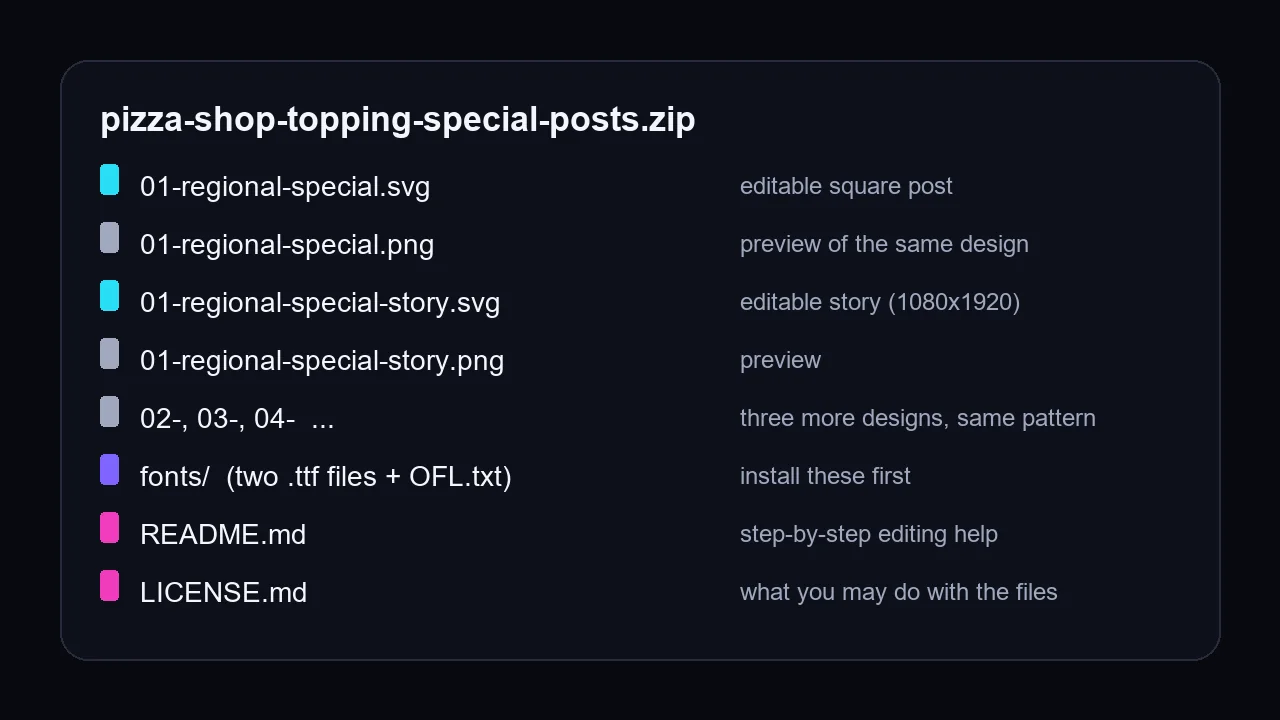
- The fonts from the ZIP. Each kit ships its fonts in a
fontsfolder with their open-source licence. Install them before you open the SVG, or the editor substitutes a different font and the layout shifts. - Your own photo for the photo designs (optional, the sample photo is fine for a first test).
The anatomy of a design
Each design has the same handful of parts. Knowing them makes editing quick:

Step by step in Inkscape
- Install the fonts. Open the
fontsfolder, double-click each.ttfand press Install. Restart Inkscape if it was open. - Open the SVG. File › Open, pick for example
01-regional-special.svg. If Inkscape asks how to import, choose the default option. - Retype the text. Press
Tfor the Text tool, click into the headline and type. Do the same for the business name, subtitle, the detail chips and the contact line at the bottom. Keep the headline to a few words so it stays on one or two lines. - Swap the photo. Click the photo, then Edit › Delete. Import your own (File › Import, choose Embed), then right-click it and Lower to Bottom so the text sits on top. Drag the corners to fill the frame; hold
Ctrlto keep the proportions. - Match your brand colours and add your logo. The fastest way is
brand-it.htmlin the ZIP: open it in any browser (it runs offline and uploads nothing), drop in your logo, then drop in the SVG files. Your logo's colours are applied to every design, keeping each design's light and dark areas, your logo is placed where the sample business name sits, and the branded SVGs and PNGs download as a ZIP. Prefer to do it by hand? Click any shape or text and pick a colour from the Fill and Stroke panel (Shift+Ctrl+F); the chips, bar and accent line are ordinary shapes. - Export. File › Export (
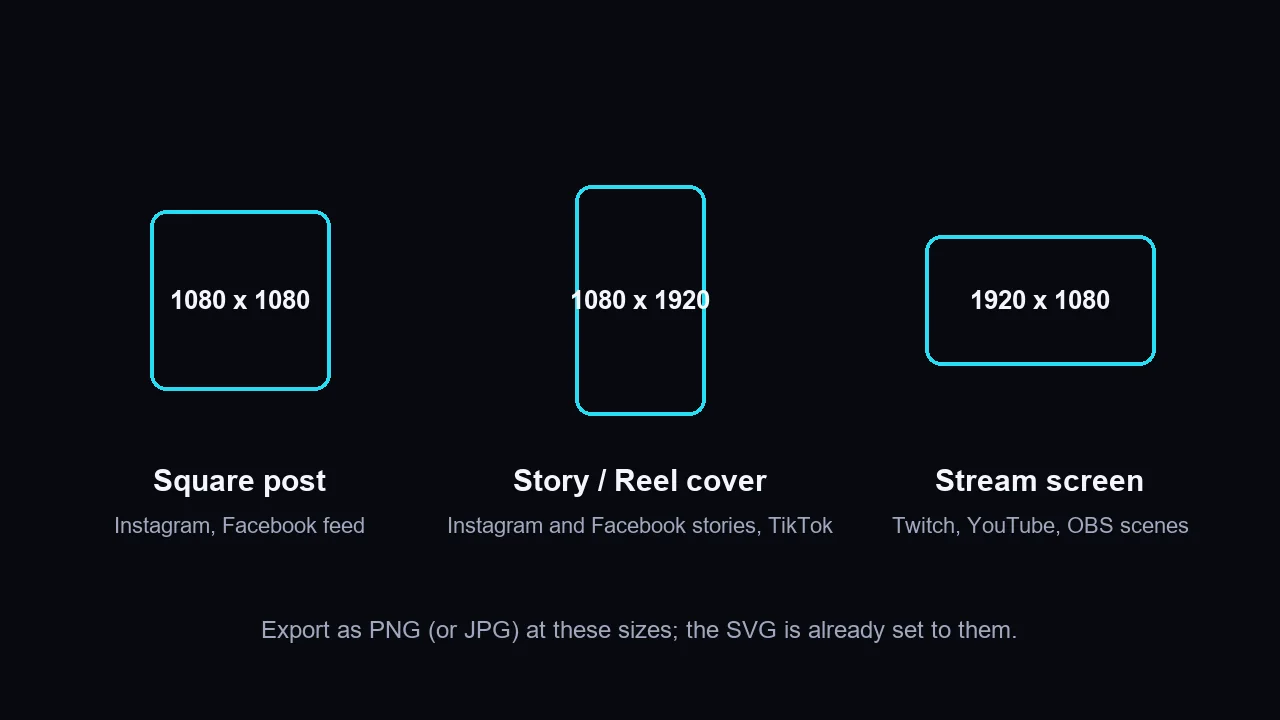
Shift+Ctrl+E), choose Page, keep the size the file already has, pick PNG or JPG and press Export. Post the exported image, not the SVG.
Illustrator and Affinity Designer
The steps are the same. In Illustrator use the Type tool to retype, File › Place for your photo (send it to the back with Shift+Ctrl+[) and File › Export › Export As for the PNG. In Affinity Designer the Text tool, File › Place and File › Export do the same jobs.
Common questions
- The fonts look wrong. They were not installed before the file was opened. Install them, then close and reopen the SVG.
- Can I use these in Canva? Canva does not import SVG designs as editable layouts. Export a PNG from the vector editor and upload that if you want to post from Canva.
- The story version looks different. It is a separate file with the same design re-laid for 1080x1920; edit it the same way.
- Do I have to credit anyone? No. The licence in the ZIP lets you use the finished images for your own business or channel; only redistributing the original files is excluded.
Invoice templates by trade: Car Detailing · Dog Walking · Electrician · Handyman · House Cleaning · Lawn Care · Personal Trainer · Pet Grooming · Photography · Plumbing